Making Your Website Easier to Understand
Do headings, labels, instructions, controls, forms, errors, and status changes provide enough information for visitors and assistive technologies to understand what’s happening and what to do next?
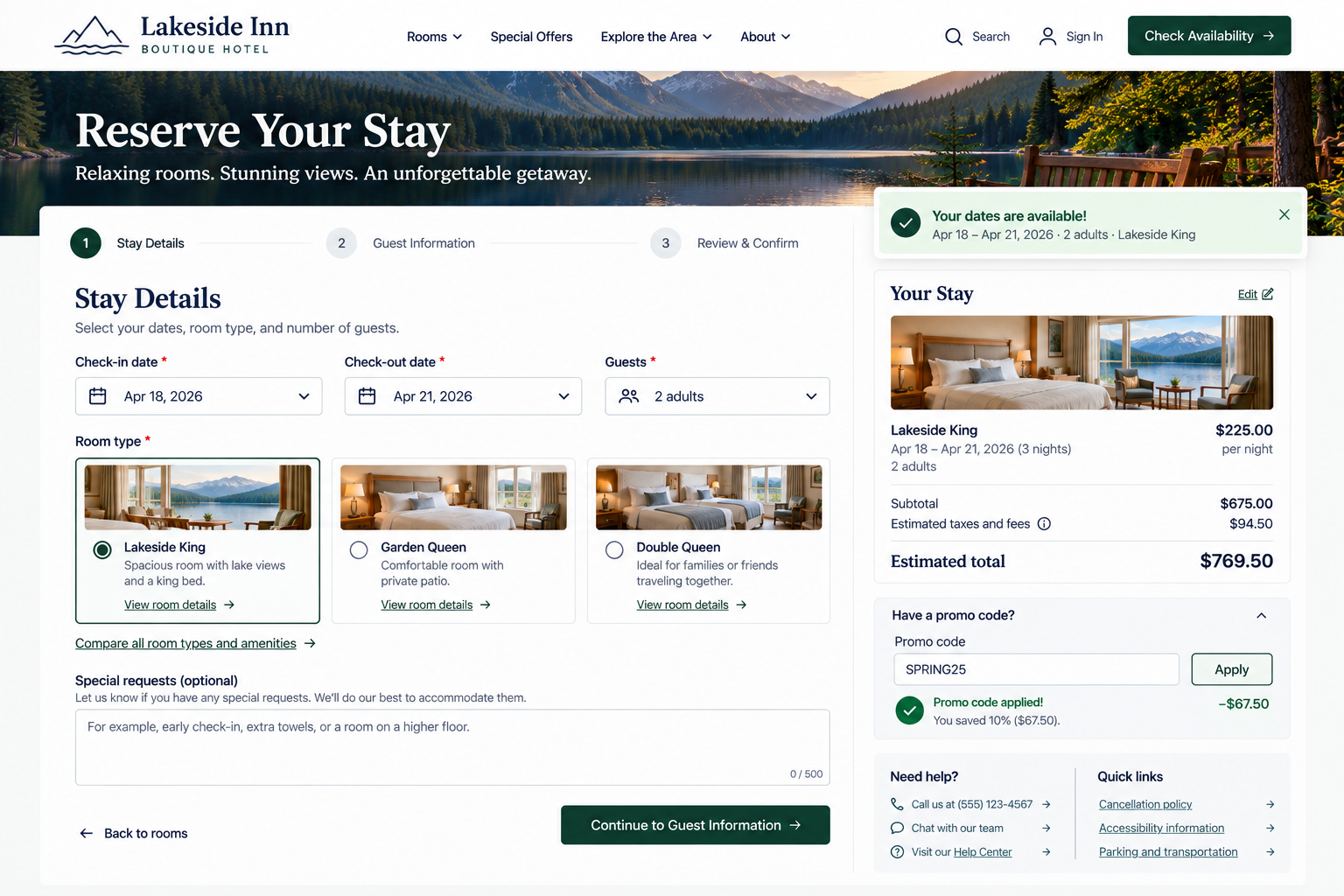
Visitors shouldn’t have to guess how your website works. They need to understand what a page is about, what information you’re asking for, what buttons and links will do, and whether their actions were successful.
It is just as important to communicate this information in ways that work with assistive technologies.
What is clear visually may not be clear to someone using a screen reader. For example, a red outline around a form field signals an error to some, but offers no information to someone who cannot see it. An icon-only button might look familiar, but if it does not have a meaningful name for assistive technology, its purpose is lost.
An understandable website helps visitors answer:
What is this page or section about?
What information or action is expected from me?
What will happen if I use this link, button, or control?
If something changes or goes wrong, will I know about it?
1. Use clear headings, labels, and instructions
UX Check: Do headings, labels, and instructions help visitors understand the content and what they’re expected to do?
Use descriptive headings and labels that help visitors understand how content is organized and what controls, fields, and options are for. Avoid vague language or relying only on placeholder text as a form field label.
Provide instructions when visitors need them, such as password requirements, upload restrictions, or required formats. Make important requirements clear before visitors take action so they don’t have to learn through trial and error.
Good headings, labels, and instructions reduce the interpretation visitors need before they can act.
2. Clearly communicate form requirements and errors
UX Check: Can visitors understand what a form requires and how to correct a problem when something goes wrong?
Make form requirements clear before visitors submit, including which fields are required and any important formatting, password, or document requirements. Don’t rely on color alone to communicate this information.
When errors occur, explain specifically what went wrong and how to fix it. Place messages near the relevant field or action, and consider an error summary for longer forms with multiple issues.
Error messages should help visitors understand the problem, correct it, and continue.
3. Make links, buttons, and controls understandable
UX Check: Can visitors tell what links, buttons, and other controls will do before they use them?
Use specific link and button labels that communicate what will happen, such as View Return Policy or Schedule Appointment rather than vague labels like Click Here or Submit.
When similar controls appear repeatedly, make their purpose distinguishable where appropriate. Icon-only controls should also have accessible names that explain their function.
Keep interactions predictable. Links should generally navigate somewhere, buttons should perform actions, and familiar controls should behave as visitors expect.
Visitors should not have to experiment to figure out what controls do.
4. Use appropriate semantic structure and accessible names
UX Check: Does the website communicate the structure and purpose of its content to assistive technologies—not just visually?
Visual design alone doesn’t communicate a page’s structure to assistive technologies. Use appropriate website elements so headings, lists, form fields, buttons, navigation, and other page regions are identified by their intended roles.
Interactive elements also need meaningful accessible names. For example, an icon-only cart button might be identified as View Cart, while an X used to close a window might be Close Dialog.
Be especially careful with custom components that look like familiar controls but don’t provide the same underlying structure or accessibility information.
Visitors should be able to understand what something is or does, even without relying on the visual design.
5. Communicate dynamic states and updates to assistive technology
UX Check: When something changes on the page without a full reload, will visitors using assistive technology know that it happened?
Websites often update content without loading a new page, such as when a product is added to the cart, search results change, a file finishes uploading, or a form displays an error.
Make important updates available to assistive technology so visitors can understand what changed, confirm that an action succeeded, or respond to a problem.
Not every visual change needs to be announced. Focus on updates visitors need to understand the current state of the interface or determine what to do next.
Dynamic experiences should provide meaningful feedback whether or not someone can see the page changing
Make the experience easier to understand
Accessibility isn’t only about whether visitors can access content or use controls. They also need to understand what they’re seeing and what to do next.
Use meaningful headings, labels, and instructions. Clearly explain form requirements and errors, make interactive controls understandable, provide a structure that assistive technologies can interpret, and communicate important changes when the interface updates.
Visitors shouldn’t have to guess what something means, what action to take, or whether that action was successful.
Review your website experience
Your homepage is just one part of the experience visitors have with your website.
The Website Experience Snapshot is a free resource that helps you evaluate across nine areas of your website—from your homepage and navigation to conversion, mobile, accessibility, and the overall site experience. Use it to spot where visitors may be running into friction and where improvements could make the biggest difference.