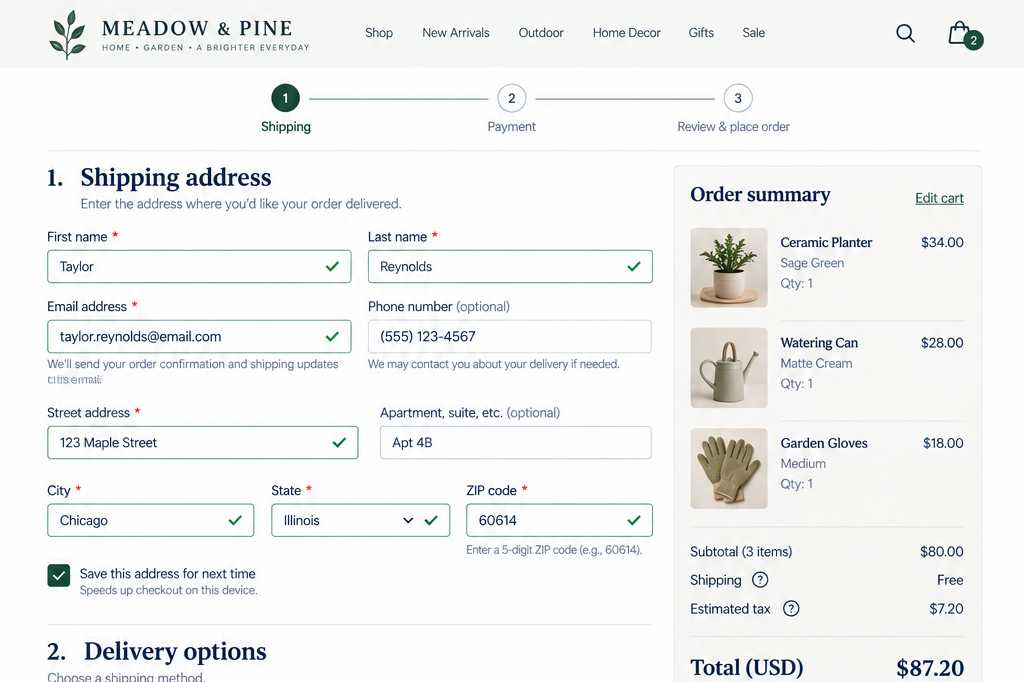
Forms and Data Entry
Does the process ask only for necessary information and make forms, selections, and corrections easy?
Forms are often where a visitor’s interest becomes effort. They may need to enter contact information, create a password, choose from several options, provide payment details, correct errors, or answer questions before they can buy, book, register, apply, or get in touch.
Some of that work is necessary.
Some of it isn’t.
Forms become harder to complete when they ask for information you don’t actually need, use unclear fields, require extra decisions, reject reasonable answers, or force visitors to repeat steps after an error.
Your forms should help visitors answer a few basic questions:
What information do I actually need to provide?
How should I enter it?
What do I need to fix if something goes wrong?
Can I complete this without unnecessary extra work?
1. Ask only for necessary information and explain unexpected requests
UX Check: Are we asking only for information we genuinely need at this point in the process?
Every form field adds effort, so each question should have a clear purpose. Ask only for the information needed at that stage rather than collecting details simply because they may be useful later.
Pay particular attention to unexpected or sensitive requests. When asking for information like a date of birth, phone number, income, or identification, explain why it’s needed when appropriate.
Visitors shouldn’t have to wonder why you’re asking for information that seems unrelated to their task.
2. Organize forms with a clear, logical structure
UX Check: Does the form present information in an order that makes sense to the person completing it?
A form can ask the right questions and still feel difficult if they are not organized well.
Group related information into clear sections and present questions in a logical sequence. For longer forms, use descriptive headings to help visitors understand what information is needed and how the questions relate. If one answer determines what comes next, ask it before showing dependent questions.
The structure should make it easier for visitors to understand what you’re asking.
3. Clearly label fields and communicate what is required
UX Check: Can visitors tell what belongs in each field and what information they have to provide?
Visitors should not have to guess what a field is asking for. Use visible, specific labels so visitors know exactly what each field requires. Don’t rely only on placeholder text, which disappears once someone starts typing.
Clearly and consistently identify required and optional fields. When a specific format or requirement applies, explain it before submission.
Give visitors what they need to complete the form correctly the first time.
4. Use appropriate input controls and eliminate unnecessary choices
UX Check: Are we making it as easy as possible for visitors to provide each type of information?
How you ask for information affects how much effort it takes to provide.
Choose input controls that make answering as easy as possible. Use radio buttons for a few visible choices, checkboxes when multiple selections are allowed, and appropriate inputs for information like dates.
Don’t ask visitors to make unnecessary choices when the website can determine the answer. Reasonable defaults can reduce effort, but never preselect options that could result in an unexpected purchase, subscription, donation, or charge.
Aim to remove unnecessary choices, but do not take important decisions away from visitors.
5. Support familiar, efficient data entry
UX Check: Does the form help visitors enter familiar information as efficiently as possible?
Make common information like names, addresses, phone numbers, and payment details easy to enter using familiar patterns.
Support autofill, password managers, and appropriate device keyboards. Avoid asking visitors to re-enter information you already have or splitting information across unnecessary fields. Reduce repetitive data entry whenever possible.
Small improvements to common data entry tasks add up, especially when repeated throughout a process.
6. Validate input at helpful times without being unnecessarily restrictive
UX Check: Does validation help visitors correct problems without rejecting reasonable input?
Validation should help people complete a form successfully. Validation should not feel like a test of whether someone guessed the exact format you wanted.
Identify errors at a useful time without interrupting people while they’re still typing. Accept reasonable variations in information like phone numbers, names, or payment details when the system can interpret them safely.
Validation should help people fix real problems, not create new ones.
7. Make errors specific, actionable, and easy to find
UX Check: When something goes wrong, can visitors quickly understand what happened and how to fix it?
Error messages should explain what went wrong and how to fix it.
Put error messages next to the field with the problem so visitors can see what needs attention. For longer forms, an error summary may also help visitors locate multiple issues.
Do not rely only on color to show errors. Make sure visitors can tell what needs attention without having to notice a color change.
Visitors should not have to search the form to find out what stopped them from moving forward.
8. Preserve valid information when errors occur
UX Check: If one part of the form contains an error, does the website preserve everything the visitor entered correctly?
Fixing one mistake should not mean starting over. Preserve information visitors have already entered when an error occurs, especially details that take time to provide, such as addresses, selections, uploads, or application responses.
If sensitive information can’t be retained for security reasons, make that clear without clearing unrelated fields.
Test unsuccessful submissions to ensure errors don’t force visitors to repeat unnecessary work.
Do not make errors more frustrating by forcing visitors to repeat work they already did correctly.
9. Avoid unnecessary account creation and make non-account completion easy to find
UX Check: Do visitors really need an account to complete this task?
Account creation can benefit both the visitor and the business, especially when managing purchases, appointments, preferences, or applications, but they aren’t always necessary.
When an account isn’t required, let visitors continue without one and make options like Continue as Guest easy to find. You can offer account creation afterward, when its benefits may be more relevant.
Invite visitors to create an account only when it offers real value, not just because your system prefers it.
10. Make payment information easy and accurate to enter
UX Check: Does the payment form make it straightforward for visitors to enter and verify their information?
Payment is one of the most consequential parts of many conversion processes.
Use familiar fields, support autofill and saved payment methods where appropriate, accept common formatting, and avoid asking visitors to re-enter information you already have.
If payment fails, explain what to do next without clearing unrelated information. Before the final action, clearly show the amount being authorized.
Entering payment information should feel familiar and straightforward, not like another hurdle.
Reduce the work required to complete the task
Some conversion processes genuinely require a lot of information. That doesn’t mean they need to feel unnecessarily difficult.
Ask only for what you need. Organize questions logically. Make fields understandable and efficient to complete. Accept reasonable input. Help visitors correct errors without losing valid work. Avoid forcing account creation when it isn’t necessary. And make payment entry as familiar and straightforward as possible.
The goal isn’t simply to make forms shorter. The goal is to remove unnecessary effort from the information you truly need visitors to provide.
The easier it is for visitors to understand what you’re asking and provide it successfully, the less likely the form itself is to become the reason they stop.
Review your website experience
Your homepage is just one part of the experience visitors have with your website.
The Website Experience Snapshot is a free resource that helps you evaluate across nine areas of your website—from your homepage and navigation to conversion, mobile, accessibility, and the overall site experience. Use it to spot where visitors may be running into friction and where improvements could make the biggest difference.