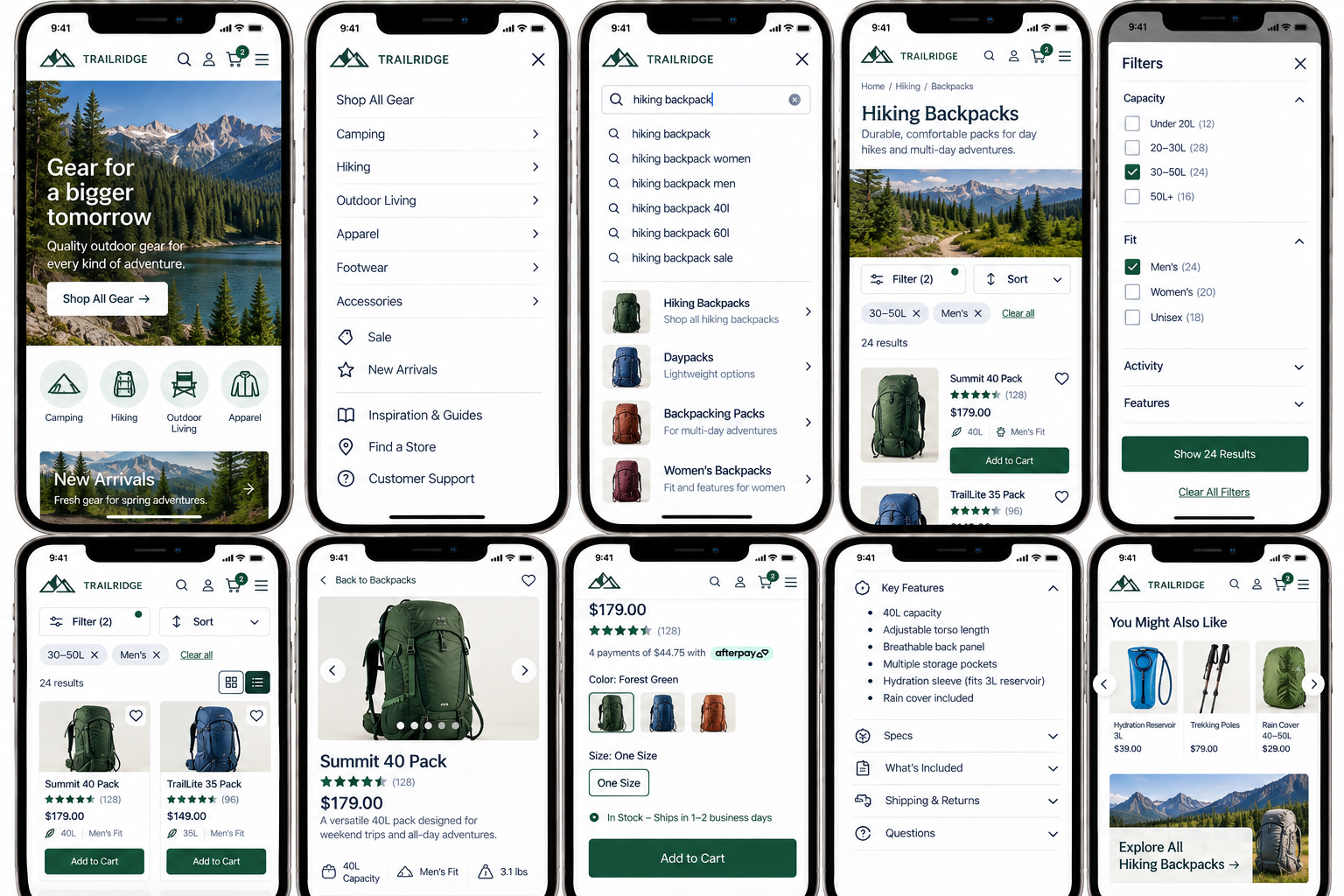
Finding Information on Mobile
Can mobile visitors quickly navigate, search, browse, and narrow options to find the information or offering they need?
Even if your website includes all the right information, it can still be hard for people to find what they need on a phone or mobile device. Mobile screens offer less space for navigation, search, filters, product details, and other tools people rely on to get around.
This makes it even more important to prioritize what matters most. Visitors shouldn’t need to dig through multiple menus, scroll past large blocks of content, or jump back and forth just to find a product, service, or key information.
Your mobile website should help visitors answer:
Where can I go from here?
How can I quickly search or browse for what I need?
Can I narrow a large set of options without fighting the interface?
Can I find the important information about an offering without excessive searching or scrolling?
1. Prioritize important destinations and utility actions in mobile navigation
UX Check: Does our mobile navigation make the destinations and actions visitors need most easy to reach?
Mobile has less room for navigation, but important destinations and actions should still be easy to find.
Prioritize the content and tasks visitors need most, such as services, product categories, search, appointments, account access, or cart. Frequently used functions shouldn’t become difficult to find simply because the screen is smaller.
Organize secondary options appropriately rather than simply hiding them.
Base mobile navigation priorities on visitor needs, not just what fits on the screen.
2. Use predictable mobile navigation patterns
UX Check: Can mobile visitors quickly recognize how to open, use, and close the navigation?
Mobile visitors are accustomed to familiar navigation patterns. Use a recognizable menu control in an expected location, and make sure the menu behaves predictably.
Clearly distinguish links from expandable options, make multi-level navigation easy to move through, and use understandable labels and controls. Avoid unusual interactions that force visitors to figure out how the menu works.
Keep navigation consistent across the mobile experience. Your mobile menu should act as a reliable map of your site, not something visitors have to figure out each time.
3. Provide access to broad overview pages
UX Check: Can mobile visitors access broader category or section pages rather than being forced directly into a narrower option?
Expandable mobile menus can accidentally remove access to important overview pages.
If a top-level category like Shoes, Services, or Resources has its own useful page, keep it accessible with an option such as View All Shoes, All Services, or Explore All Resources.
Visitors should be able to browse the broader section as well as its individual categories.
Don’t let a compact mobile menu take away helpful ways for people to explore your website.
4. Make mobile search easy to find and use
UX Check: If search is important on our website, can mobile visitors quickly find it and enter a useful query?
Search can be especially useful on mobile, where navigating through multiple menu levels takes more effort.
If search is important, make it easy to find and give visitors enough space to type, review suggestions, and select results accurately.
Make it clear how to close search and return to the page.
Mobile search should make finding information easier than navigating through menus.
5. Make mobile filtering and sorting easy to access and manage
UX Check: Can mobile visitors narrow and reorder a large set of options without losing track of what they’ve selected?
On mobile, filters may move into a drawer, panel, or separate view, but Filter and Sort should remain easy to find.
Organize options clearly, show which filters are active, and let visitors change or remove individual selections without starting over.
Keep actions like Apply, Show Results, and Clear Filters easy to access.
Filtering on mobile should help people narrow their choices, not add another layer of confusion.
6. Keep mobile listings compact, informative, and easy to distinguish
UX Check: Can visitors efficiently scan several options on a small screen and understand the important differences between them?
Mobile listings should provide enough information to evaluate options without turning each one into a miniature detail page.
Include the details that matter most, such as an image, name, price, availability, location, or key difference. Avoid oversized cards that slow browsing, but don’t remove so much information that options become difficult to distinguish.
Help visitors scan and compare options quickly.
7. Keep essential offer information easy to find on mobile
UX Check: Can mobile visitors quickly find the information they need to understand and evaluate an individual product or service?
Product and service pages often become much longer on mobile as desktop content stacks vertically.
Keep essential details, such as price, availability, key features, what’s included, timing, or requirements, easy to find. Use clear headings and collapsed sections when helpful, but don’t hide important information unnecessarily.
Sticky actions or information can reduce scrolling, but use them carefully. Every persistent element takes up valuable mobile screen space.
Make the small screen easier to navigate
Mobile visitors don’t necessarily need less information. They need that information organized and prioritized to fit the space available.
Keep important destinations easy to reach. Use navigation patterns people recognize. Make sure visitors can explore your site in broad ways, not just through narrow paths. Make search, filtering, and sorting straightforward. Keep listings clear and informative without making them too large. And make sure essential information about your offerings is easy to find.
The goal isn’t to cram your desktop site onto a smaller screen. It’s to make sure people on mobile can still answer the most important question: Where do I go to find what I need?
Review your website experience
Your homepage is just one part of the experience visitors have with your website.
The Website Experience Snapshot is a free resource that helps you evaluate across nine areas of your website—from your homepage and navigation to conversion, mobile, accessibility, and the overall site experience. Use it to spot where visitors may be running into friction and where improvements could make the biggest difference.