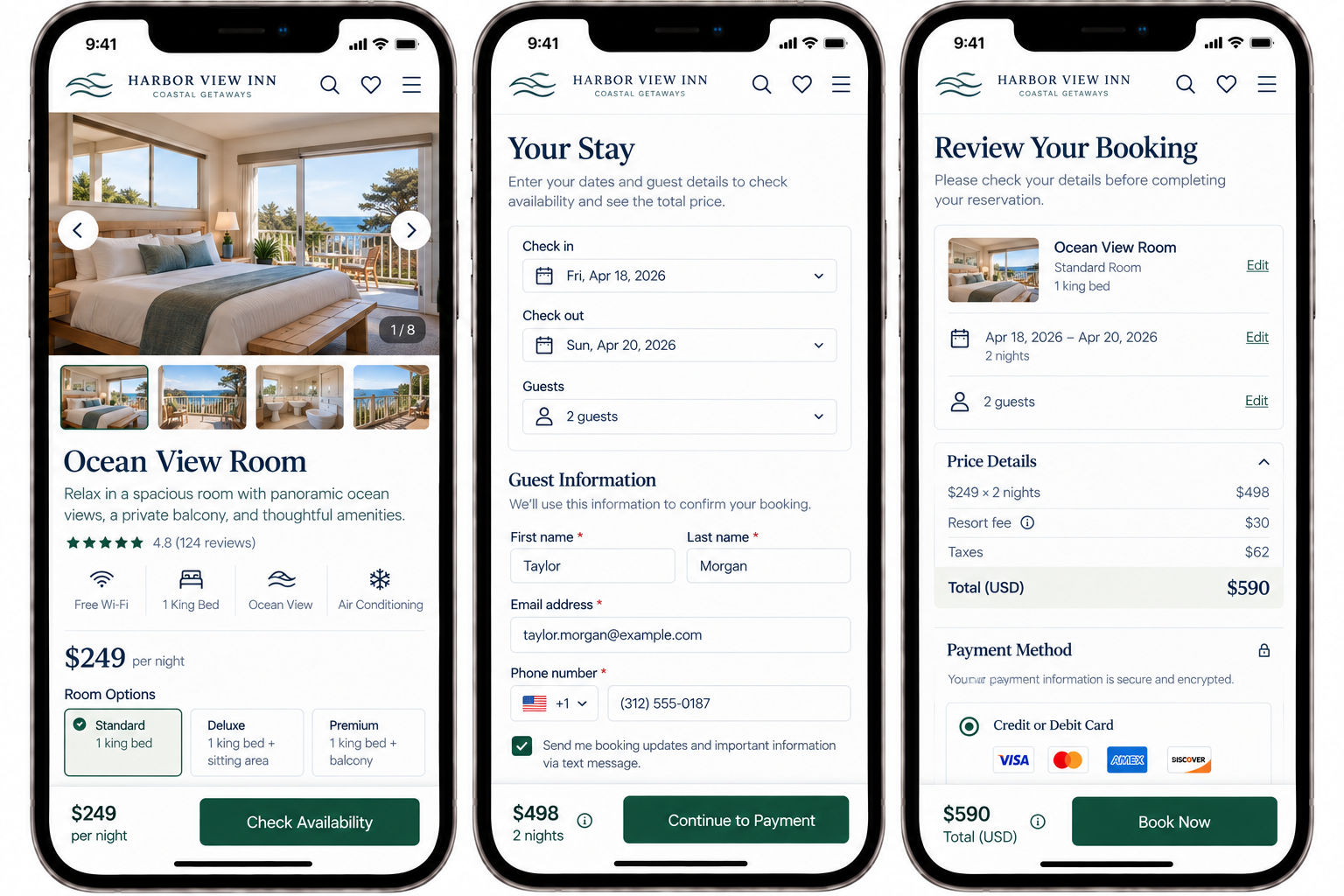
Completing Important Tasks on Mobile
Can visitors comfortably use forms, take primary actions, and complete important tasks end-to-end without unnecessary friction?
Finding what you need on a mobile website is one thing. Actually completing a task is another.
A visitor might reach the right product, service, or account page, but still face obstacles when it’s time to take action.
The checkout button might vanish after a long scroll. Forms can require awkward typing. Date pickers may be hard to use. Uploading a document from a phone can be unreliable. Sometimes the keyboard covers the next field. Payment or authentication steps often feel like they were designed for a desktop, not a phone.
These issues matter. Mobile visitors should not need to switch to a computer just to finish what they started.
Your mobile website should help visitors answer:
What do I need to do next?
Can I comfortably enter the information you’re asking for?
Can I use the controls and tools required to complete this task?
Can I finish the entire process from my phone?
1. Keep primary actions prominent without obscuring content
UX Check: When mobile visitors are ready to move forward, can they easily find the main action without it interfering with the rest of the content?
On long mobile pages and multi-step processes, place important actions where visitors need them so they don’t have to scroll far to continue.
Sticky actions can help keep next steps like Add to Cart, Continue, or Book Appointment accessible, but they shouldn’t cover content or take up too much screen space.
If an action isn’t available yet, clearly explain what visitors need to complete or correct before they can continue.
The goal is to keep the next step easy to reach, without making the interface more difficult to use.
2. Optimize forms and controls for mobile input
UX Check: Can visitors comfortably enter information and use the controls required to complete the task from a phone?
Typing and completing forms takes more effort on a phone, so minimize unnecessary fields and use mobile-friendly inputs, controls, autofill, and keyboards. Avoid asking visitors to re-enter information they’ve already provided.
Test interactive fields, uploads, payment, and authentication on actual mobile devices. Make sure the keyboard doesn’t hide important content and that visitors don’t lose their progress when switching apps or encountering errors.
Test the entire process from start to finish, not just individual fields.
Mobile form design is not just about fitting fields on the screen. It is about making the entire task practical to complete on a phone.
Make mobile a complete experience
A mobile website should not be a preview of an experience that requires a computer to complete.
If visitors can find a product, they should be able to buy it.
If they can find an appointment, they should be able to book it.
If they can begin an application, registration, or request, they should be able to complete it.
Keep important actions accessible, but do not let them take over the screen. Design forms and controls for mobile input, not desktop habits. Test the full journey on a real phone.
The question isn’t just whether the page works on mobile. It’s whether visitors can complete what they came to do.
Review your website experience
Your homepage is just one part of the experience visitors have with your website.
The Website Experience Snapshot is a free resource that helps you evaluate across nine areas of your website—from your homepage and navigation to conversion, mobile, accessibility, and the overall site experience. Use it to spot where visitors may be running into friction and where improvements could make the biggest difference.